

Learn how to start a video appointment
Updated over one month agoMateria+ partners with Agora.io to offer video appointments on all provider plans.
To begin a virtual appointment, navigate to Appointments and click the video icon on the right of the appointment you wish to initiate.
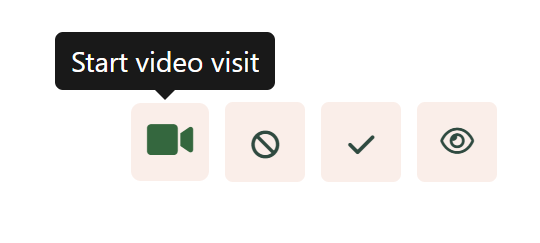
After doing this, Materia+ will send an email to the patient with a link to join the virtual appointment and you will be redirected to your waiting room.
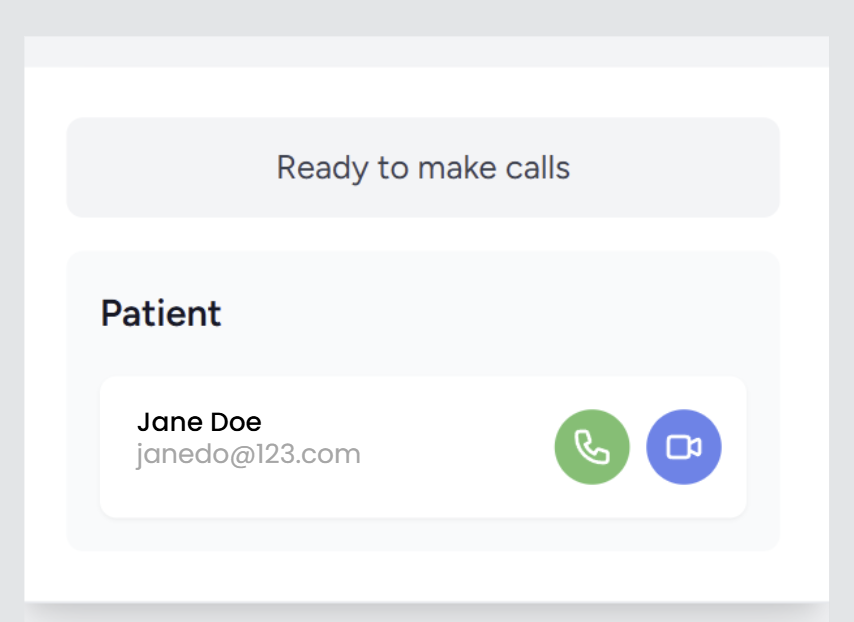
Once you’re in the waiting room, choose either the video or call option. Selecting video enables both your camera and microphone for the appointment, while choosing call uses only your microphone and does not activate your camera. Selecting either option will take you into the appointment room, where your patient will join you shortly. You can learn more about how patients enter a virtual appointment here.
Mobile devices
To prevent issues on mobile devices, ensure you as well as your patient's device and browser have camera and microphone access enabled. Check the settings of both the mobile device as well as the browser application you are using. When you join a video appointment, remember to grant the requested permissions for both camera and microphone so everything runs smoothly.
Note: Be sure to allow your patients a few minutes before the scheduled start time to ensure that any technical issues are resolved prior to beginning the appointment.
Video appointment FAQ
Why is my patient's video displaying a black screen?
If you or your patient sees a black screen, the camera is likely turned off or your browser doesn’t have permission to access it. To fix this, check your device or browser settings and ensure both camera and microphone access are enabled—these are usually found under Application (App) or Privacy settings.
To enable access on your device, open Settings, go to Applications (Apps), select the browser you’re using (Chrome, Safari, Firefox, etc.), and turn on camera and microphone permissions. After updating these settings, restart the video appointment by sending a new call.
If you don’t see camera and microphone options in your device settings, check your browser’s settings instead. Open your browser, go to its settings menu, locate camera and microphone permissions (typically found under Site Settings), and make sure both are enabled.
How do I send my patient a video appointment invite?
When you click “Start video visit” for an appointment in your Appointments tab, your patient will automatically receive an invitation sent to the email they have on file.
How do I enlarge the patient's video display?
To enlarge your patient’s video display, right‑click the video you want to expand, choose Show Controls, and select the Fullscreen icon. If your patient wants to enlarge your video feed, have them follow the same steps on their device.
When call starts and immediately ends?
When a call ends immediately, it usually means the call cache needs to be cleared. Select Clear previous calls to remove the stored cache, and your call should run normally afterward.
Is the platform secure & compliant for telehealth?
Yes. We partner with Agora to deliver safe, secure, and compliant 1:1 video appointment capabilities. For details on Agora’s privacy practices, terms, and compliance policies, you can visit their website at www.Agora.io.