

Learn how to book and join a virtual appointment
Updated less than a month ago
Booking virtual appointments
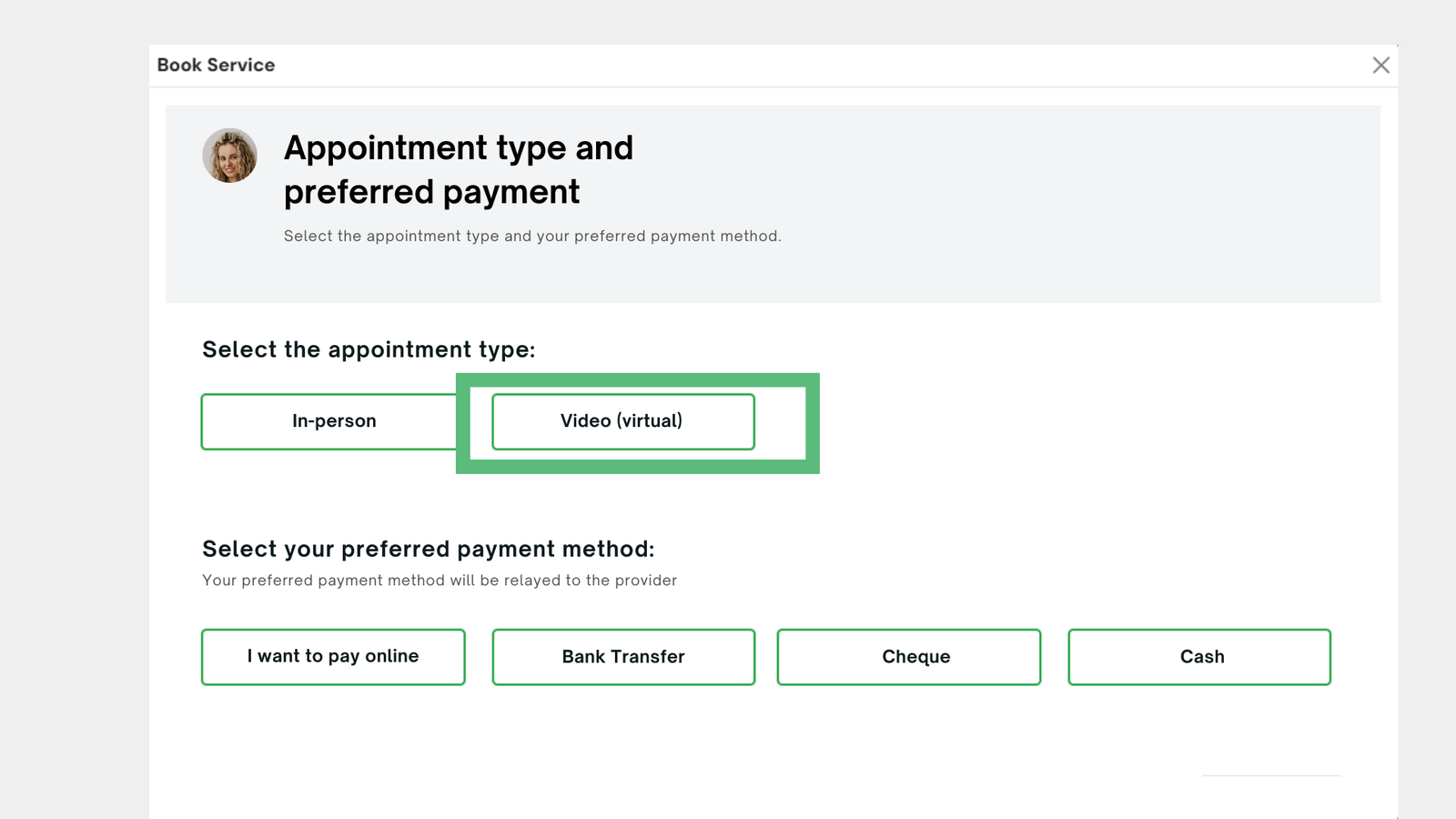
You can schedule a virtual appointment on Materia+ in the same way you would for an in-person appointment. Choose the service you want to book, select a date and time from the available slots, and proceed through the booking process. At some point, you will be prompted to choose whether the appointment will be in-person or virtual. Select the virtual option and finalize your booking.
How do I join my virtual appointment?
Materia+ partners with Agora to deliver secure and compliant video appointments for patients. Shortly before your scheduled session, you’ll receive an email from Materia+ with a Join button and link. Select either option to enter your video appointment, and ensure you’re signed in to your Materia+ account beforehand for a smooth connection.
Joining a virtual appointment on mobile devices
To prevent issues on mobile devices, ensure your phone and browser have camera and microphone access enabled. Check the settings of both the mobile device as well as the browser application you are using. When you join a video appointment, remember to grant the requested permissions for both camera and microphone so everything runs smoothly.
Virtual appointment FAQ
Why is my video displaying a black screen?
If you only see a black screen, the camera is likely turned off or your browser doesn’t have permission to access it. To fix this, check your device or browser settings and ensure both camera and microphone access are enabled—these are usually found under Application (App) or Privacy settings.
To enable access on your device, open Settings, go to Applications (Apps), select the browser you’re using (Chrome, Safari, Firefox, etc.), and turn on camera and microphone permissions. After updating these settings, restart the video appointment by sending a new call.
If you don’t see camera and microphone options in your device settings, check your browser’s settings instead. Open your browser, go to its settings menu, locate camera and microphone permissions (typically found in Site Settings), and make sure both are enabled.
How do I enlarge the provider's video display?
To enlarge your provider's video display, right‑click the video you want to expand, choose Show Controls, and select the Fullscreen icon. If your patient wants to enlarge your video feed, have them follow the same steps on their device.
Is the platform secure & compliant for telehealth?
Yes. We partner with Agora to deliver safe, secure, and compliant 1:1 video appointment capabilities. For details on Agora’s privacy practices, terms, and compliance policies, you can visit their website at www.Agora.io.